
Welcome to the FX Tool documentation! The FX Tool is a small and relatively simple program that can be used to tweak or create dazzling and beautiful special effects for all of your modding needs. Whether your new effect is for a new weapon attack or simply something to make your scenery more appealing, the FX Tool is what you will use to bring your effects to life.
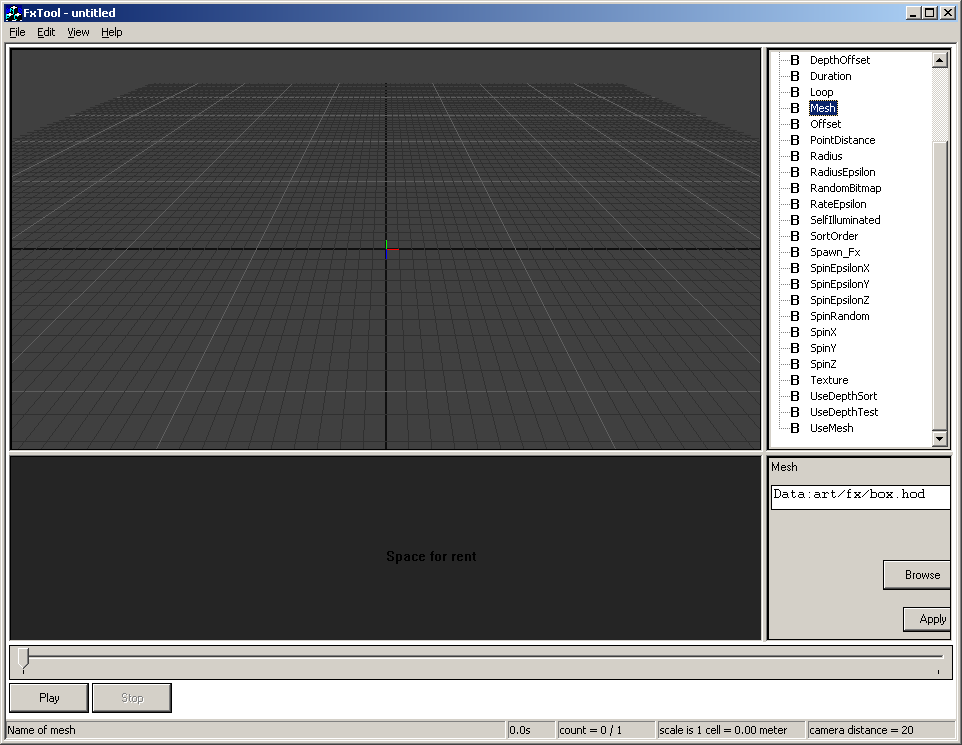
The FX Tool’s interface can basically be broken down into three sections:
The FX Tool’s menubar contains options like File, Edit, View, and Help .
These windows take up the right side of the FX Tool interface. One lists all the properties that the current effect has, and the other allows for numeric input for the selected properties. Clicking on any of the “+” symbols next to any of the entry boxes will open the linked effect in a tree view fashion. Any changes made here (except for wind force dynamics) will be stored in its. LUA file.
The Main Viewer Window is where you will see your effect as it is being played or edited. Below it is an empty grey space used for options that require the graph input, such as the radius attribute of a ring effect. When radius is selected in the properties window, a graph will appear below the view window. Clicking anywhere on the graph view will create a key frame at that position. Multiple key frames can be selected at once by band boxing them. Holding down ‘Alt’ while multiple key frames are selected will allow you to move and scale them. The graph and value ranges are set on the right of the graph view. Below the graph view is the timeline slider. Click the ‘Play’ button to preview your effect, or drag the slider across the timeline to job through.
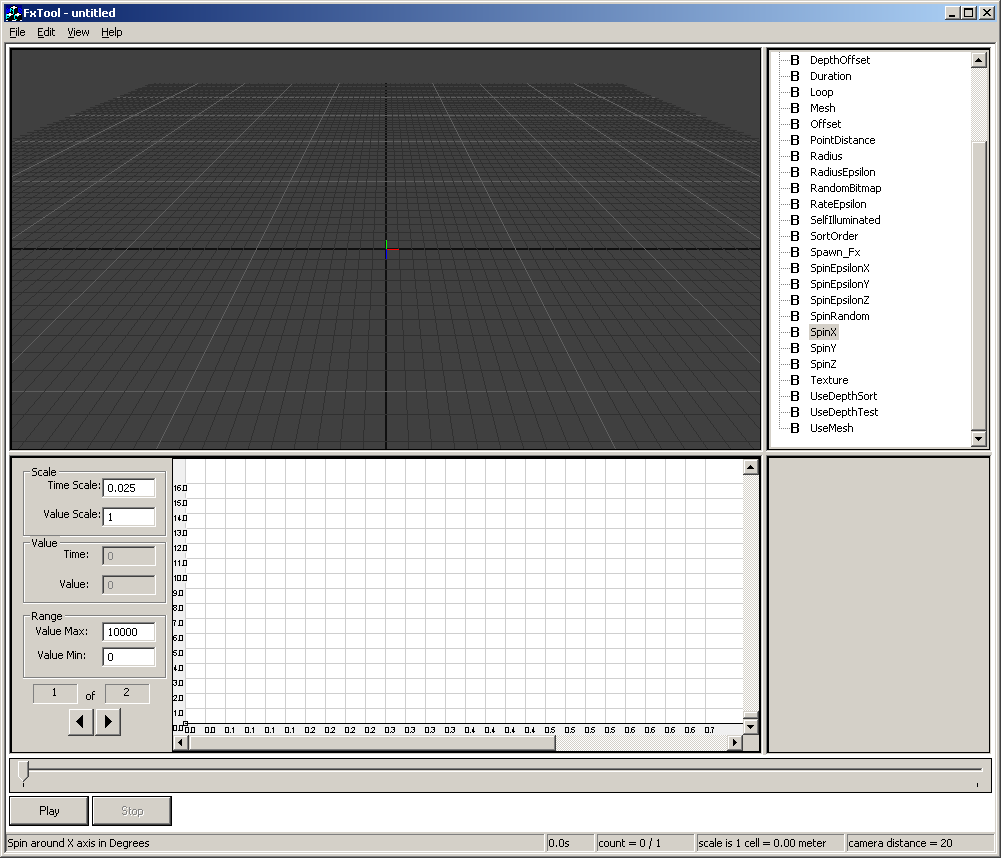
The Keyframe Editing Window is where you can edit keyframe values for time-variant FX properties. It is positioned right below the Main Viewe r Window. Depending on the property selected, you may edit keyframes via a keyframe graph or a keyframe slider. A keyframe graph is shown the sample screenshot above. The Keyframe Editing Window is blank if the currently selected property is time-invariant.
FX Tool